

Backing up your photos and files is one of the smartest steps you can take to protect your digital life. Whether you have precious family photos, important documents, or work files, losing them can be frustrating and sometimes costly. Fortunately, backing up doesn’t have to be complicated or time-consuming. In this guide, we’ll walk you through practical methods to keep your data safe, so you can have peace of mind.
Why Backing Up Your Photos and Files Matters
Data loss can happen unexpectedly due to hardware failure, accidental deletion, theft, or even natural disasters. Backups ensure that you have a copy of your important information stored securely somewhere else. This means even if your computer, phone, or external drive stops working, your files remain protected.
Popular Backup Methods
1. External Hard Drives
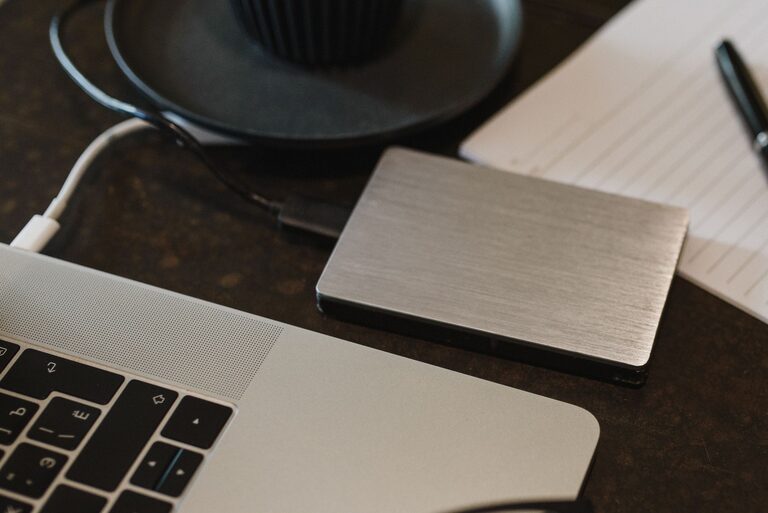
External hard drives are physical devices that connect to your computer via USB or other ports. They offer a quick way to back up large amounts of data.
Pros:
– Large storage capacity at a reasonable price
– No internet needed for backup or restore
– Simple to use with drag-and-drop or backup software
Cons:
– Can be lost, stolen, or damaged
– Requires regular manual backups unless automated
Tips:
– Use a durable case to protect the drive.
– Label your backup dates for easy reference.
– Schedule monthly backups to keep your data current.
2. Cloud Storage Services
Cloud storage stores your files on remote servers accessible over the internet. Popular services include Google Drive, Dropbox, OneDrive, and iCloud.
Pros:
– Access your files from any device with internet access
– Automatic backups and syncing available
– Some plans offer version history to recover previous file versions
Cons:
– Requires internet connection
– Storage limits on free plans may require paid upgrades
– Privacy concerns depending on the service provider
Tips:
– Use strong, unique passwords and enable two-factor authentication.
– Regularly review what files you store to manage storage space.
– Take advantage of automatic syncing features to simplify backup.
3. USB Flash Drives
USB flash drives offer a portable way to back up smaller amounts of data.
Pros:
– Compact and portable
– Easy to use on multiple devices
– Affordable for small backups
Cons:
– Limited storage capacity compared to external drives
– Easily lost or damaged
Tips:
– Use flash drives for important files you need on the go.
– Label your flash drives clearly to avoid confusion.
– Store them safely when not in use.
4. Network Attached Storage (NAS)
NAS devices are like personal cloud servers that connect to your home network. They allow multiple devices to back up to the same location.
Pros:
– Centralized backup for multiple users
– Can be accessed remotely with proper setup
– Often supports automatic and scheduled backups
Cons:
– Higher upfront cost and setup complexity
– Requires some technical knowledge for configuration
Tips:
– Choose a NAS device that fits your storage needs.
– Keep your NAS firmware updated for security.
– Back up your NAS to an offsite location or cloud for extra security.
Best Practices for Backing Up
1. Follow the 3-2-1 Backup Rule
This popular rule suggests:
– Keep 3 copies of your data (one primary and two backups)
– Use 2 different types of storage (such as a cloud service and an external hard drive)
– Store 1 backup offsite (away from your primary location)
2. Automate Your Backups
Manual backups are helpful but easy to forget. Many devices and services offer automatic backup options. Setting these up saves time and ensures your files stay current.
3. Regularly Test Your Backups
A backup is only as good as its ability to restore. Periodically verify that you can access and open your backed-up files.
4. Organize Your Files
Keep your files well-organized with clear folders and consistent naming. This helps when you need to find files during restoration.
How to Back Up Photos and Files Step-by-Step
Using an External Hard Drive (Windows Example)
- Connect your external drive to your computer.
- Open File Explorer and locate your photos and files.
- Drag and drop the folders or files to the external drive.
- Alternatively, use backup software like Windows Backup and Restore by searching for it in the Start menu.
- Follow prompts to set backup schedules and locations.
- Sign up or log in to your Google account.
- Go to drive.google.com.
- Click the “+ New” button and select “File upload” or “Folder upload.”
- Select the items you want to back up.
- For automatic backups, install Backup and Sync from Google and follow the setup wizard.
Using Cloud Storage (Google Drive Example)
Final Thoughts
Backing up your photos and files doesn’t have to be difficult or expensive. Choose one or more of the methods above that suits your lifestyle and technical comfort. Remember, the best backup strategy is one you stick to regularly. Protect your memories and important documents today—it’s a simple step that can save you a lot of trouble in the future.